ShareMe vs SHAREit – Which App is Faster for File Transfer?

Blog

- 20 Apr, 2026
- 44 Views
- 0 Comment
Transferring files between devices has become an everyday need, especially when dealing with large files like videos, documents, or apps. While many tools exist, ShareMe stands out as a fast, wireless file-sharing solution originally designed for mobile devices. But what if you want to use ShareMe on your PC?
In this complete guide, you’ll learn how to use ShareMe on Windows 10 and 11, step by step—even though there’s no official desktop app.
What is ShareMe?
ShareMe (formerly Mi Drop) is a file-sharing application developed by Xiaomi. It allows users to transfer files without using mobile data or the internet. The app uses Wi-Fi Direct technology to create a fast and secure connection between devices.
Key Features:
- High-speed file transfers
- No internet required
- Supports all file types
- Secure and private sharing
- Simple and user-friendly interface
Can You Use ShareMe on Windows?
Here’s the reality: ShareMe does not have an official Windows version. However, that doesn’t mean you can’t use it on your PC.
There are two proven methods:
- Using an Android emulator
- Using ShareMe Web (browser-based method)
Let’s go through both methods in detail.
Method 1: Use ShareMe on PC with Android Emulator
An Android emulator allows you to run mobile apps on your PC just like a smartphone.
Step 1: Download an Emulator
First, install an Android emulator such as:
- BlueStacks
- NoxPlayer
- LDPlayer
Download and install your preferred emulator on your Windows 10 or 11 system.
Step 2: Install ShareMe App
- Open the emulator
- Go to the Official ShareMe Website
- Download ShareMe
- Click Install
Once installed, open the app.
Step 3: Set Up ShareMe
- Allow necessary permissions (storage, location)
- Set your device name
- You’re now ready to send or receive files
Step 4: Transfer Files
To transfer files:
Sending Files:
- Click Send
- Select files (videos, images, apps, etc.)
- Connect to the receiving device
Receiving Files:
- Click Receive
- Wait for the sender to connect
Pros of Emulator Method:
- Full app experience
- Supports all features
- Works offline
Cons:
- Requires more RAM
- Slightly slower than native apps
Method 2: Use ShareMe Web (Best & Easy Method)
If you don’t want to install heavy software, this method is perfect.
Step 1: Open ShareMe on Mobile
- Launch ShareMe on your phone
- Tap on the menu (3 lines)
- Select Connect to Computer
Step 2: Start Connection
- Tap Start
- Choose Portable hotspot or Existing Wi-Fi
The app will generate an FTP address like:
ftp://192.168.x.x:xxxx
Step 3: Connect from PC
On your Windows PC:
- Open File Explorer
- Enter the FTP address in the address bar
- Press Enter
Step 4: Access Files
You’ll now see your phone storage on your PC. You can:
- Copy files to PC
- Upload files to mobile
- Delete or organize data
Pros of Web Method:
- No software installation
- Fast and simple
- Works on any browser
Cons:
- Requires same Wi-Fi network
- Limited features compared to app
ShareMe vs Other File Transfer Methods
| Feature | ShareMe | USB Cable | Bluetooth |
|---|---|---|---|
| Speed | Very Fast | Fast | Slow |
| Internet Needed | No | No | No |
| Ease of Use | Easy | Moderate | Easy |
| Wireless | Yes | No | Yes |
ShareMe clearly wins when it comes to speed and convenience.
Tips for Best Performance
To get the best experience using ShareMe on Windows:
 Keep both devices on the same Wi-Fi network
 Ensure sufficient battery on mobile
 Close background apps for faster transfer
 Stay within close range
Common Issues & Fixes
1. Connection Failed
- Make sure both devices are on the same network
- Restart ShareMe app
2. Slow Speed
- Switch to hotspot mode
- Reduce distance between devices
3. FTP Not Working
- Double-check the FTP address
- Disable firewall temporarily (if needed)
Is ShareMe Safe to Use on PC?
Yes, ShareMe is generally safe because:
- It doesn’t use the internet
- Data stays within local network
- No cloud storage involved
However, always:
- Avoid sharing sensitive files
- Use trusted devices only
Final Thoughts
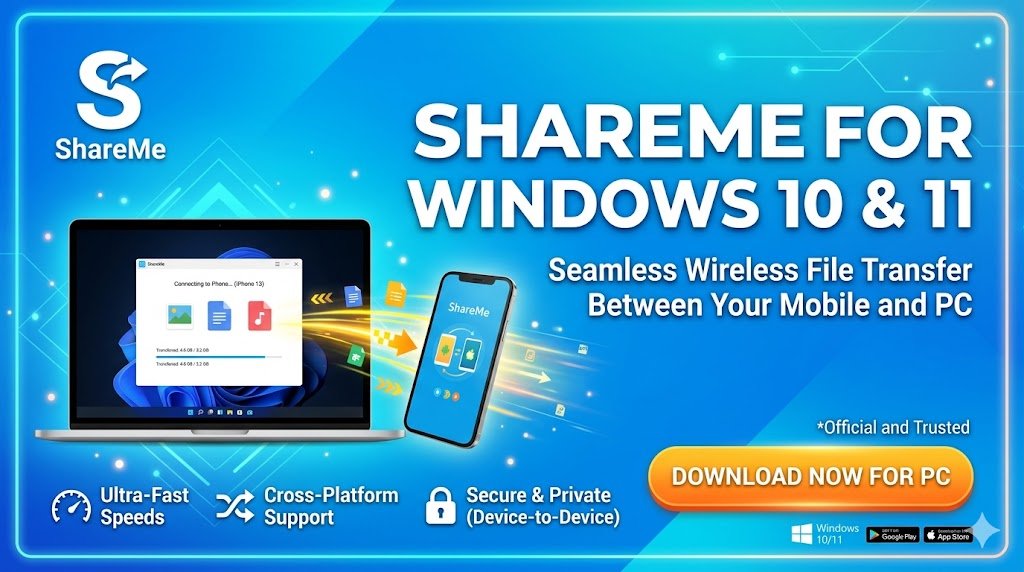
Even though ShareMe doesn’t offer an official Windows app, you can still use it effectively on Windows 10 and 11 using simple methods like an emulator or the web connection feature.
If you want full features, go with the emulator.
If you prefer speed and simplicity, use the web method.
Both options make ShareMe a powerful tool for seamless file transfers between your phone and PC—without cables or internet.
FAQs
 Can I install ShareMe directly on Windows?
No, there is no official Windows version yet.
Which method is better?
The web method is faster and easier, while the emulator offers full features.
Does ShareMe work offline on PC?
Yes, it works without internet using Wi-Fi Direct or hotspot.